Aspecten
 Download (4.9 GB)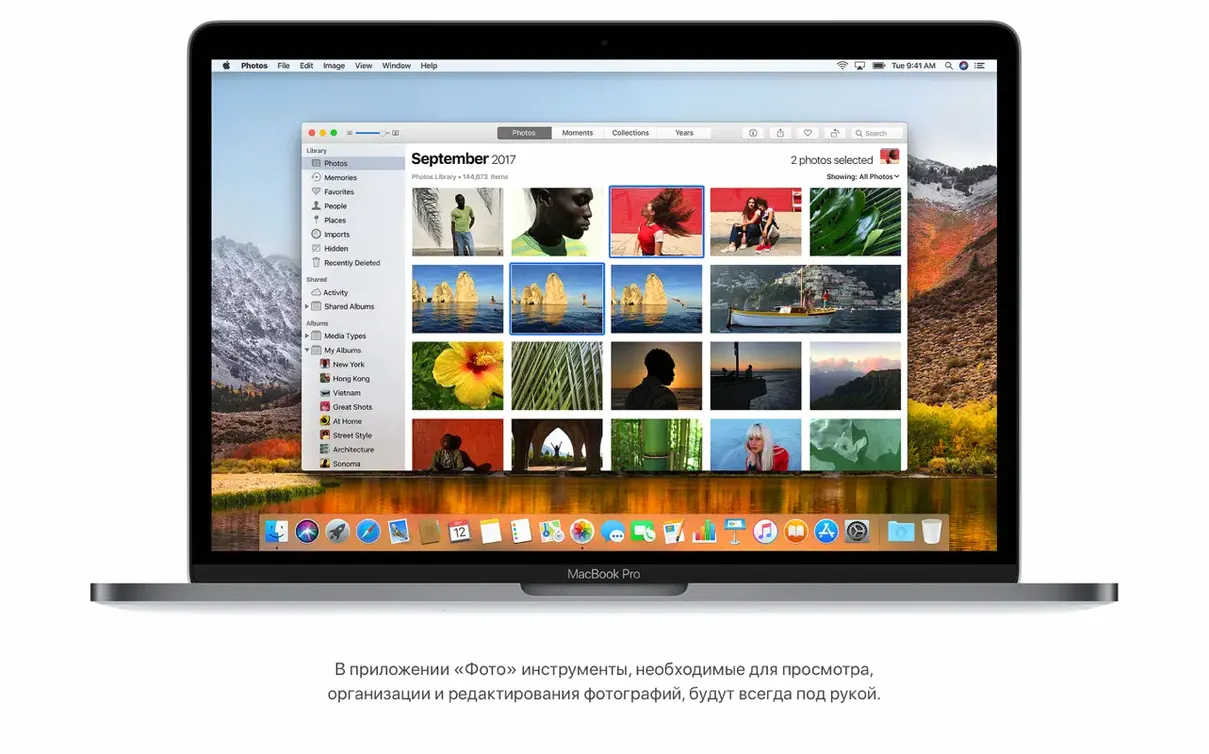
High Sierra suits the person who values a settled, familiar Mac environment over the latest feature set. It is the release that tightened the bolts on Sierra, bringing a new file system and quieter refinements to everyday apps rather than a dramatic visual overhaul. Users who rely on older professional software or prefer to stay with a 32-bit-compatible macOS often find their footing here.
Hardware support reaches back further than you might expect. The installer runs on an iMac from late 2009 onward, a MacBook from the same period, and the mid-2010 generations of the MacBook Pro, MacBook Air, Mac mini and Mac Pro. Memory demand is a modest 2GB, though the storage requirement is a firmer ask: you need 14.3GB free to perform the upgrade. An Intel processor is mandatory — Apple Silicon is not part of this equation.
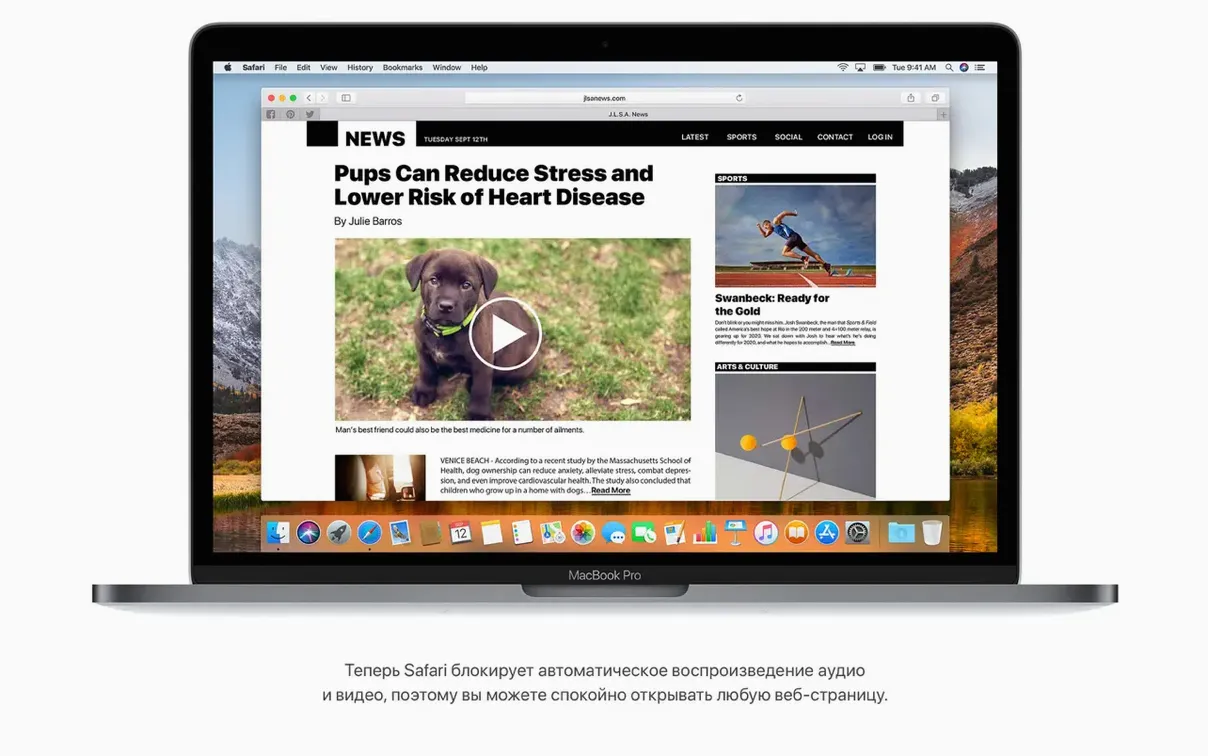
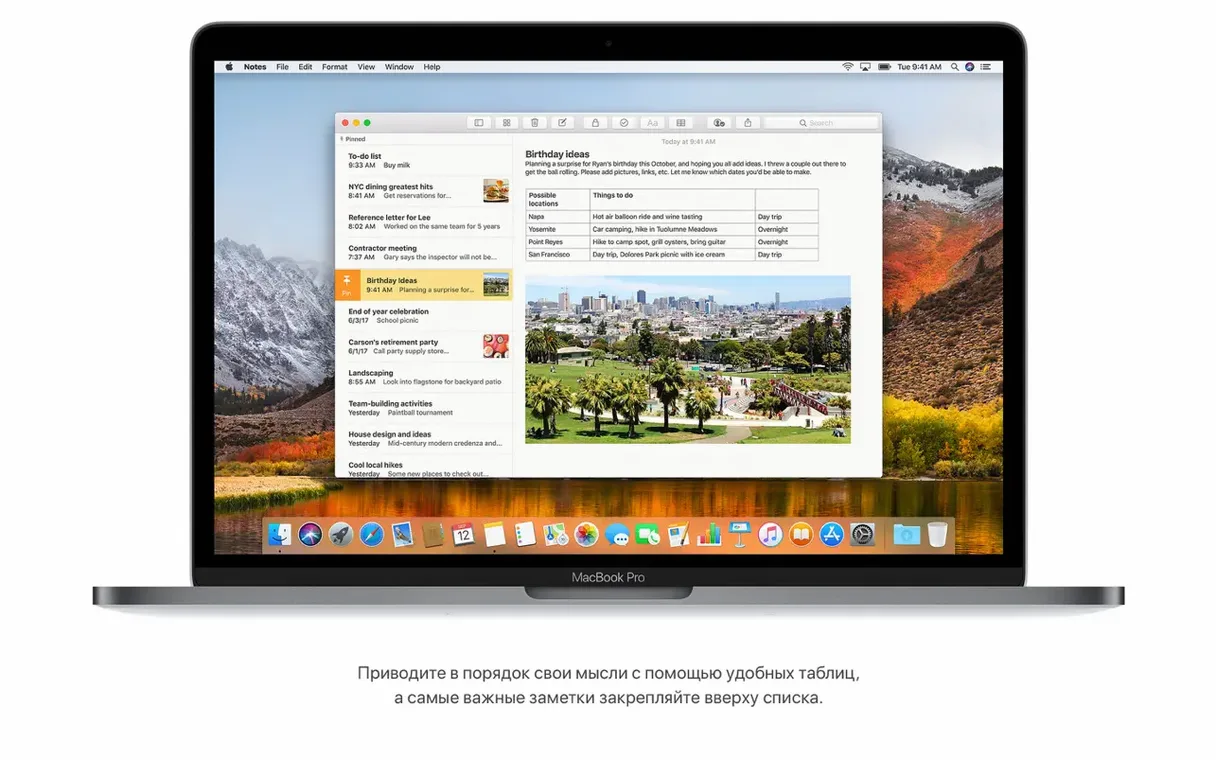
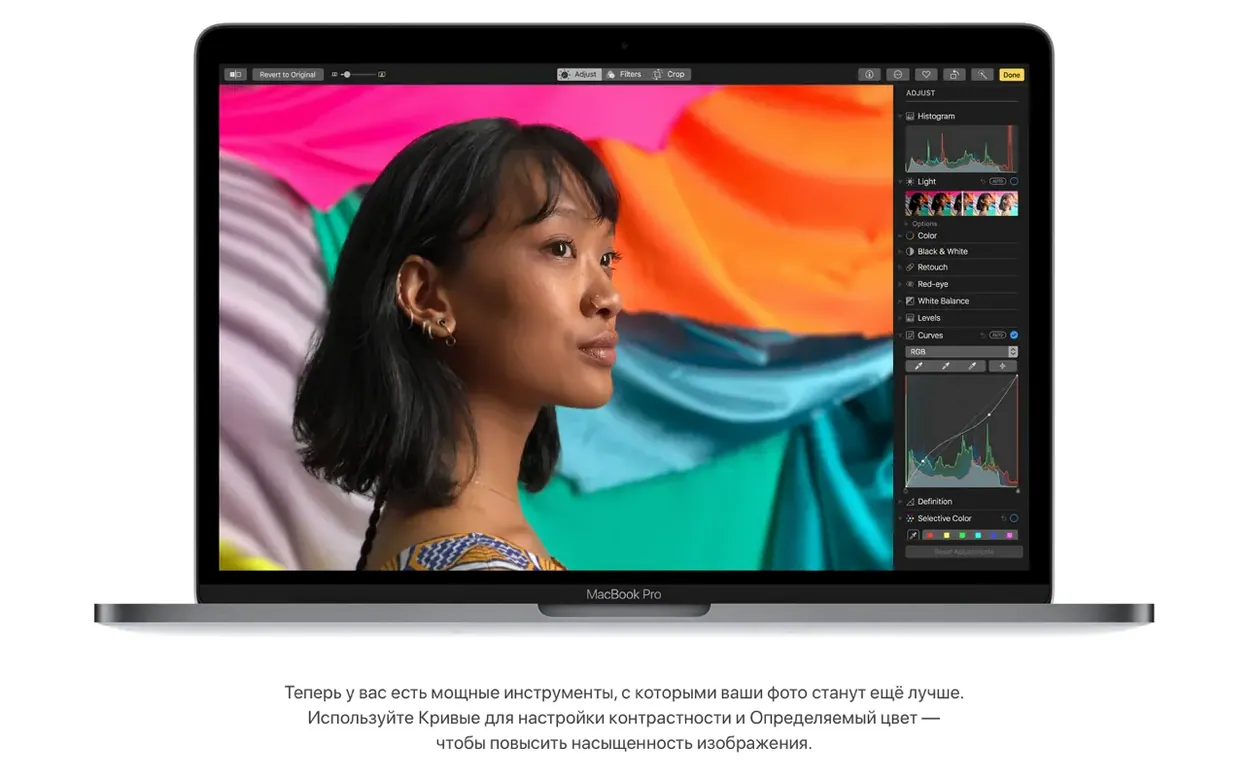
What arrives after the install is a collection of steady, under-the-hood changes. The Apple File System (APFS) replaces HFS+ on solid-state drives, bringing built-in encryption and snappier directory operations. Safari learns to block autoplay audio. Mail search gains a Top Hits view. Notes adds simple tables. Photos settles into a fixed sidebar with albums and sorting tools, and picks up Curves and Selective Color editing. Nothing shouts for attention, but the pieces fit more cleanly.
The final 10.13.6 update keeps the focus on stability. AirPlay 2 multi-room audio arrives for iTunes, alongside fixes for AVCHD media recognition in Photos and a Gmail message-moving bug in Mail. It is a maintenance release in the truest sense, reinforcing what was already there rather than reaching for something new.
AirPlay 2 arrives in iTunes
The jump from the original 10.13 release to 10.13.6 is modest in list form, yet a couple of changes touch daily routines. The most audible is AirPlay 2 support in iTunes. If you have more than one AirPlay speaker in the house, you can now send audio to several rooms at once from the same Mac, or play different tracks to different speakers. It also means iTunes can act as a multi-room controller, something that previously required an iOS device or Apple TV. The interface in iTunes stays the same; you simply tick multiple speakers in the AirPlay menu and playback stays in sync across them.
The AVCHD fix matters if you offload video from a camcorder. Before 10.13.6, Photos could silently ignore AVCHD media from specific camera models — the files simply would not appear in the import window. After the update, those clips show up as expected, and the import workflow is no different from handling standard MP4 files.
The Mail fix resolves a specific but persistent annoyance. Moving a message from a Gmail account to another account via drag-and-drop could fail without a clear error. The message appeared to copy, then snapped back to the original mailbox. With 10.13.6, the move completes reliably. It is a small correction, but for anyone who routes mail across accounts daily, it removes a friction point that had lingered for months.
APFS conversion hangs on older SSDs
APFS conversion hangs on older SSDs. The installer quietly converts solid-state drives to APFS, but some third-party SSDs, especially early models from OWC or Crucial with outdated firmware, can cause the conversion to stall at a black screen. The simplest fix is to check the manufacturer's site for a firmware updater before starting the install. If you are already stuck, boot into Recovery, wipe the drive as HFS+, reinstall, and defer the APFS conversion until the firmware is current.
Spotlight re-indexes for hours after the update. Because the file system changes, Spotlight treats the drive as new and rebuilds its index from scratch. Activity Monitor shows mds and mdworker processes eating CPU, and search returns incomplete results. Let it finish. On a large spinning drive, this can take half a day. You can track progress by opening Spotlight and typing a few letters — if results start trickling in, the index is still building. Once it settles, search speed is noticeably quicker than under HFS+.
Safari autoplay blocking is not universal. The feature stops most sound-bearing media files, but sites that embed audio through JavaScript players sometimes slip past. If a video starts playing sound on a news site, right-click the tab and choose Mute Tab for a per-site workaround. The setting lives under Safari Preferences > Websites > Auto-Play, where you can set a global policy or manage exceptions.
Some 32-bit apps throw vague launch warnings. High Sierra does not block 32-bit software, but it does fire an alert that the app "is not optimised for your Mac" and may slow performance. This is a nudge toward 64-bit, not a block. Click past it and the app runs as before. If it irritates you, there is no built-in toggle to suppress it — the alert appears once per app, per user account.
Building a bootable USB installer from a dmg
One practical task that often follows downloading a High Sierra torrent or dmg is building a bootable USB installer. It is useful for clean installs on several Macs or for having a recovery tool at hand. Here is a step-by-step run for a 16GB USB drive and the 10.13.6 installer app.
- Plug in the USB drive. Open Disk Utility, select the drive in the sidebar, and click Erase. Choose Mac OS Extended (Journaled) as the format and GUID Partition Map as the scheme. Name it something short like
USB. - Make sure the installer app — named
Install macOS High Sierra.app— sits in the Applications folder. This is where thecreateinstallmediatool expects to find it. - Open Terminal and paste the command:
sudo /Applications/Install\ macOS\ High\ Sierra.app/Contents/Resources/createinstallmedia --volume /Volumes/USB - Authenticate with your admin password. The tool warns that the volume will be erased. Type
yand press Return. - Wait for the process to copy files. The terminal shows a progress bar. On USB 2.0 drives, this can take 15–20 minutes; USB 3.0 cuts it to under 10.
- When the terminal reports
Done, the drive is ready. Eject it and label it clearly. To use it, hold the Option key at startup and select the USB volume from the boot picker.
This same method works whether you obtained the installer from the Mac App Store or extracted it from a high sierra dmg torrent. The createinstallmedia tool is self-contained within the app bundle and does not require an internet connection during the install itself — helpful for machines with flaky Wi-Fi.
Show filename extensions in Finder
Out of the box, High Sierra makes a few choices that are easy to adjust and quietly improve daily comfort.
Finder: show filename extensions. Under Finder > Preferences > Advanced, tick Show all filename extensions. Without it, a file named presentation.key and another named presentation.pdf look identical in icon view. With extensions visible, you spot the difference instantly.
Dock: turn off recent applications. The right-hand section of the Dock shows recently opened apps by default. It clutters the Dock and duplicates what is already visible in the Apple menu's Recent Items. Go to System Preferences > Dock and untick Show recent applications in Dock to reclaim the space.
Safari: enable Reader mode automatically. High Sierra can open articles in Reader mode whenever a site supports it. Under Safari Preferences > Websites > Reader, set When visiting other websites to On. It strips ads and sidebars from news pages without a click. You can override individual sites from the same pane.
Energy Saver: disable Power Nap on desktops. Power Nap wakes the Mac periodically to check mail and update Calendar. On an iMac or Mac Pro that stays plugged in, this is useful. On a MacBook running from battery, it drains charge overnight. In System Preferences > Energy Saver, untick Enable Power Nap while on battery power to keep the battery level where you left it.